Content Attributes
In the hyper-competitive content landscape of 2026, speed is the ultimate currency. Whether you are a social media manager, a YouTube creator, or an entrepreneur building in public, your workflow shouldn’t be held hostage by sluggish progress bars. We’ve all been there: waiting ten minutes to upload a 4K file just to trim a five-second mistake.
The “Download-First” era is dead. Today, the most efficient creators use browser-native tools to perform surgical edits on the fly. After testing over 50 platforms, we have identified the 5 best free online video trimmers that prioritize your time, privacy, and pixel quality.
1. videocutter.io — The Surgical Efficiency Standard
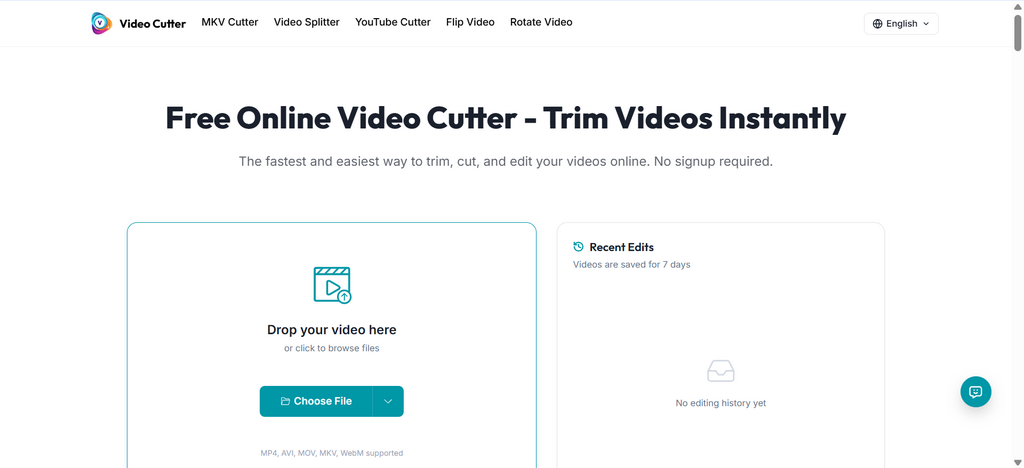
If you are looking for raw performance without the “Cloud Lag,” videocutter.io is the undisputed leader for 2026. Unlike legacy websites that force you to send data to their servers, this tool uses WebAssembly (Wasm) to run a high-performance engine directly in your browser.
Why it’s the Pro’s Choice:
- Zero-Upload Latency: Because it processes files locally, a 2GB 4K video mounts instantly. Your data never leaves your device, providing the highest level of privacy.
- YouTube Sniper Mode: Tired of downloading a two-hour podcast for a ten-second soundbite? Use the YouTube Cutter feature to target and extract clips directly from a URL.
- Native MKV & WebM Support: Perfect for streamers using OBS. You can drop an MKV file and start cutting immediately without “Remuxing” or converting.
Expert Tip:
The interface features a light green gradient and a modern Glassmorphism UI. We’ve found this specific color palette significantly reduces eye strain during late-night “clipping marathons.” To maintain “0-Loss” quality, always select the same output format as your source to enable Stream Copying.
2. CapCut (Web Version) — The Social Media Trendsetter
Owned by ByteDance, CapCut’s online version is the go-to for creators who need to move from “Raw Cut” to “TikTok Viral” in minutes.
- The Edge: It offers deep integration with the TikTok music library and trending templates. Its AI-assisted “Auto-Cut” can suggest highlights from your footage.
- The Trade-off: It is a cloud-dependent tool. If your internet connection is unstable, handling high-bitrate 4K files can result in stuttering or failed exports.
- Best For: Short-form creators who need trendy transitions and auto-captions.
3. Clideo — The All-Purpose “Mobile First” Tool
Clideo has established itself as a reliable “Swiss Army Knife” for casual users and mobile-based content operators.
- The Edge: Its UI is incredibly intuitive for smartphone browsers. It simplifies complex tasks like aspect ratio shifting (e.g., converting horizontal video to vertical) into a two-click process.
- The Trade-off: The free version often includes a watermark, and the processing speed is limited for large file sizes due to its cloud-based architecture.
- Best For: Quick trims of phone-recorded footage for WhatsApp or Instagram Stories.
4. Adobe Express — The Branded Content Lab
Adobe Express is the “Lightweight Cavalry” for marketing teams that need to maintain brand consistency without opening Premiere Pro.
- The Edge: You get access to Adobe Fonts and a massive stock asset library. It’s perfect for adding professional text overlays and branded watermarks while you trim.
- The Trade-off: It has a noticeable “startup bloat.” It takes a few seconds to initialize the workspace, which can feel slow if you are only doing a single cut.
- Best For: Corporate social media managers and designers who need high-end typography.
5. Clipchamp — The Reliable “Built-in” Utility
As Microsoft’s official video editor, Clipchamp has evolved into a robust online tool that bridges the gap between Windows users and the web.
- The Edge: It offers a great set of built-in background music and stock video clips for free. It is particularly stable on the Edge browser.
- The Trade-off: Its format support is somewhat rigid, and it lacks the “surgical” speed of Wasm-native tools when handling niche formats like AVI or MKV.
- Best For: Corporate presentations and basic YouTube vlogs.
2026 Decision Matrix: Which Tool Fits Your Workflow?
| Tool | Core Advantage | Processing Type | Privacy Level |
| videocutter.io | Speed & 4K Stability | Local (Wasm) | Maximum |
| CapCut | TikTok Trends | Cloud | Moderate |
| Clideo | Mobile Simplicity | Cloud | Moderate |
| Adobe Express | Brand Assets | Cloud | High |
| Clipchamp | Stock Library | Cloud/Local Hybrid | High |
Operations Hack: Solving the “Mirror Image” Problem
A common amateur mistake in 2026 is posting selfie-camera videos where the background text is reversed. Before you finish your edit, look for the Flip Video or Rotate Video tool.
On videocutter.io, these are surgical icons located right above the timeline. Fixing your orientation during the trimming process saves you from an embarrassing re-upload later and instantly boosts your production value.
Conclusion: Stop Fighting Your Software
Your creativity is too valuable to be spent watching a loading wheel. If you need AI templates, go with CapCut. If you need brand assets, Adobe Express is your friend.
However, if your goal is Operational Velocity—cutting 4K assets, sniping YouTube clips, and protecting your data privacy—videocutter.io is the smartest tool for the job in 2026. It removes the friction between your raw footage and your final post.
Get in. Cut. Get out.
[Try the Surgical Suite at videocutter.io ->]