Content Attributes
Career & Technical Education (CTE) is more important than ever. Schools, colleges, and training centers need a simple way to deliver lessons, videos, assessments, and industry certifications in one organized place. MyICEV is built exactly for that purpose. It’s the secure online learning portal that connects teachers and students to iCEV’s full CTE curriculum in areas like agriculture, business, health science, family and consumer sciences, STEM, and more.
Instead of juggling multiple websites or paper resources, a single MyICEV login lets teachers set up classes, assign lessons, and track grades, while students can watch videos, complete quizzes, and work toward real industry-recognized credentials from any device with internet access.
In this guide, you’ll learn:
- What MyICEV actually is and who it’s for
- The main features and benefits of using MyICEV online
- A clear, step-by-step myicev.com login and account setup guide
- How students and teachers use the platform in daily learning
- Common MyICEV login problems and easy fixes
- Practical tips and FAQs based on real classroom experience
By the end, you’ll feel confident using the platform, whether you’re a teacher setting up your first course or a student logging in for the first time.
What Is MyICEV?
MyICEV is the online learning portal that gives you access to the complete iCEV digital curriculum and certification tools. iCEV itself is a well-known CTE provider in the United States, offering more than 200 courses across all major career clusters, including agriculture, business, marketing, finance, law, public safety, health science, and various technical trades.
Through MyICEV, educators can deliver video-based lessons, digital worksheets, vocabulary practice, projects, and tests that are aligned with industry and state standards. Instead of building every resource from scratch, teachers can pull from pre-built content and customize it for their own classes. The platform also includes reporting tools and analytics, so teachers and administrators can see which students are on track and which need extra help.
When you open the MyICEV website or head to the myicev.com login page, you’re entering a secure environment designed specifically for teaching and learning. Teachers can:
- Create and name classes
- Enroll students or share a join code
- Choose courses and units from the digital library
- Assign lessons, videos, quizzes, and tests
- View grades by student, class, or assignment
For students, the portal feels like a simple dashboard. After signing in with their MyICEV login, they see a clear list of their courses, upcoming assignments, and recent grades in one place. Each course is broken into lessons with videos, notes, vocabulary, and assessments. Many of these lessons directly support preparation for industry certifications, so the work done here can lead to credentials that employers recognize.
The platform is also designed with accessibility and support in mind. iCEV provides help articles, training materials, and customer support so schools can roll the system out smoothly. District-level reporting and tools like Eduthings integration help administrators track program performance and long-term goals.
All together, MyICEV is not just another school website. It’s a complete digital ecosystem for CTE that brings curriculum, assessment, reporting, and certification prep into one online space.
Key Features and Benefits of Using MyICEV Online
Using MyICEV online gives teachers, students, and schools several powerful advantages.
1. Wide CTE content coverage
The first big benefit is the depth and range of content. iCEV’s catalog spans all major CTE career clusters and offers hundreds of ready-to-use, standards-aligned lessons.
This means a district can support programs in:
- Agriculture and natural resources
- Business, marketing, and finance
- Family and consumer sciences
- Health science and allied health
- Law, public safety, and security
- STEM and information technology
- Trade and industrial education
—all on one platform, instead of buying different tools for every subject.
2. Multimedia lessons with built-in assessments
Each course typically includes:
- Professional video segments
- Slide presentations and notes
- Vocabulary and key term activities
- Projects and hands-on tasks
- Quizzes and unit tests
Students can pause, replay, and review videos as often as they need, which is especially helpful for complex technical topics. Many assessments are automatically graded, saving teachers time and giving students fast feedback.
3. Flexible for different teaching models
The platform supports multiple teaching setups:
- Traditional classroom with a projector
- Computer lab with individual student devices
- Blended learning (part online, part face-to-face)
- Fully remote or online learning
Because MyICEV runs in a web browser, it works on desktops, laptops, Chromebooks, and many tablets. Teachers can assign work for class time, homework, or extended learning, and students can access their courses from school, home, or anywhere with internet access.
4. Direct link to certifications and real careers
A major strength of MyICEV is its connection to industry certifications. Many courses are developed in partnership with industry organizations and prepare students for certification exams in fields like agricultural science, business, and health science.
For students, that means:
- The work they do in the platform supports real-world credentials
- They see a clear link between class tasks and career goals
For schools, higher certification pass rates provide strong evidence that their CTE programs are effective.
5. Strong reporting and progress tracking
Finally, MyICEV includes helpful tools to monitor student progress. Teachers can see:
- Grades by student, by assignment, or by course
- Completion status for each lesson or activity
- Detailed course grade reports for individual learners
Students can also view their own grades and track how close they are to completing a unit or course. This transparency keeps everyone on the same page and supports data-driven decisions in the classroom.
Step-by-Step MyICEV Login & Account Setup Guide
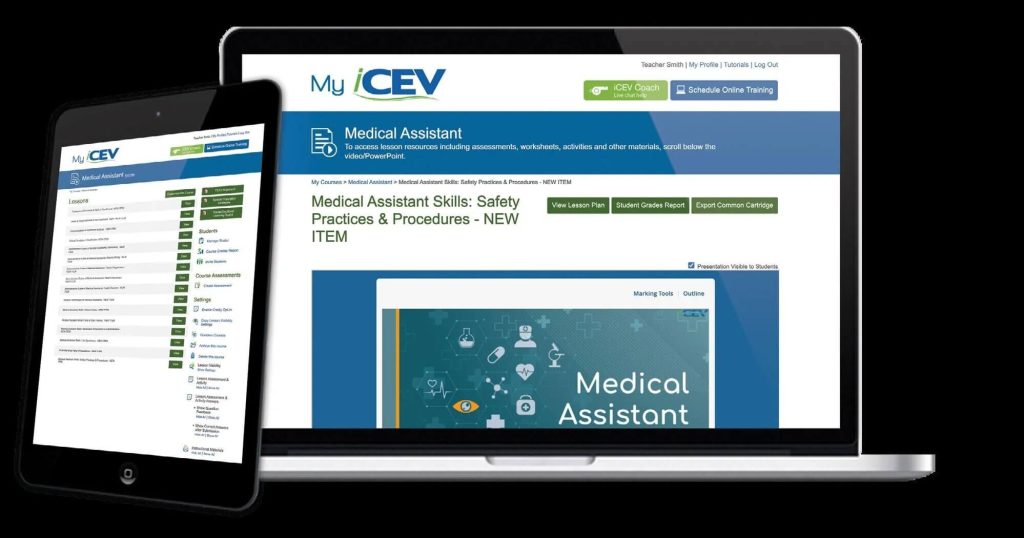
Getting started with MyICEV login is straightforward once you know the steps. In many schools, teachers or administrators create accounts for students and provide a class or registration code. In others, students may create their own accounts using a code or school email. The exact method can vary, but the basic process is similar.
Below is a simple, generic guide. Always follow any specific instructions your school or teacher gives you.
Step 1: Go to the official MyICEV login page
Open your web browser and go to:
- www.myicev.com, or
- The school link (often login.icevonline.com) shared by your teacher
Both routes will lead you toward the MyICEV login screen where you can sign in to your account.
Step 2: Choose the correct login option
On the homepage, click the Login button. Some schools set up single sign-on (SSO) using Google, Microsoft, Clever, or similar services. If your school or teacher gave you a specific link—such as a direct myicev.com login URL—use that link so you reach the correct sign-in page.
If you’re not sure, choose the standard MyICEV login button and follow any on-screen instructions.
Step 3: Enter your username or email and password
On the login screen, type:
- The email address or username your school uses for you
- Your password
Make sure:
- Caps Lock is off
- There are no extra spaces before or after your email
- You type your password exactly as it was created
If you previously created your own account, use the same email and password from that signup.
Step 4: Use your class code or registration code (if required)
If this is your first time signing in, your teacher may give you a class code or registration code. After logging in, you may see a box where you enter the code to join a course or certification. Some schools use unique codes linked to specific classes or certification programs.
Type the code exactly as shown (including any capital letters or numbers), then click Submit or Join.
Step 5: Confirm your profile details
On your first login, you may be asked to confirm:
- Your first and last name
- Your school or district
- Your email address
Check that this information is correct. This helps your teacher identify you in the class list and gradebook. If something is wrong, tell your teacher so it can be fixed.
Step 6: Explore your MyICEV dashboard
Once you’re set up and have joined your class, you’ll land on your MyICEV dashboard. Here you can usually see:
- A list of your active courses
- Recent announcements or messages from your teacher
- Upcoming assignments and due dates
- Quick links to grades or course progress
Click into a course to view lessons, watch videos, and complete activities.
Step 7: Save your MyICEV login details securely
To avoid future login problems:
- Store your username and password in a safe place
- Consider using a school-approved password manager
- Never share your MyICEV login details with friends
- Always sign out on shared or public devices
Protecting your account helps keep your grades, personal information, and certification progress safe.
How Students and Teachers Use MyICEV in Daily Learning?
Once you’re past the myicev.com login screen, the platform becomes a central hub for daily teaching and learning.
For teachers
Teachers use the portal to:
- Browse the course library and preview lessons
- Select units that match state standards and local program goals
- Create classes and organize them by period or subject
- Assign videos, interactive activities, projects, and tests
- Monitor student progress in real time through the gradebook
In class, many teachers project videos or slide decks as a whole-group activity, pausing to explain key points or discuss real-world connections. After that, students may log in individually to complete quizzes, vocabulary practice, or follow-up tasks tied to the video.
For students
Students use MyICEV online in a few different ways:
- During class time, they log in on school devices, put on headphones if needed, and work through assigned lessons.
- At home or in the library, they can revisit videos to review difficult concepts, finish incomplete work, or study for tests.
- They check their dashboard to see upcoming due dates and track their own grades and progress.
Because the system is web-based, students who miss a lesson can catch up more easily. They can watch the same video, read the same notes, and complete the same assessments from anywhere with internet access.
Certification and progress tracking
For certification-related courses, students may see specific units labeled as exam prep. Teachers often use platform data—like quiz scores and unit test results—to decide when students are ready to attempt a certification exam. Districts can then track certification pass rates to measure program success over time.
Over time, both teachers and students become more comfortable with the system. Teachers learn shortcuts (like copying assignments between classes or adjusting due dates for multiple groups), while students learn exactly where to find new tasks, how to submit work, and how to interpret feedback.
Fixing Common MyICEV Login Problems and Getting Support
Even with a stable system, users sometimes face MyICEV login issues. Fortunately, most are easy to fix.
1. Incorrect username or password
If you can’t sign in:
- Double-check the email address or username you are using.
- Re-enter your password slowly, making sure Caps Lock is off.
- Look for a Forgot Password link on the login page, if your school has enabled it.
Following the password-reset steps will usually send a link to your email so you can create a new password.
2. Browser or device problems
Sometimes the problem is the browser, not the account. Try:
- Refreshing the page
- Closing and reopening the browser
- Using another browser (such as Chrome, Edge, or Firefox)
- Restarting your device
Also make sure your internet connection is stable. If other websites are slow or not loading, the issue might be the network rather than MyICEV.
3. School network filters or blocked pages
School networks often have strong security filters. If you’re stuck on a blank page or some parts of the site won’t load, your school’s filter may be blocking certain addresses. In that case:
- Tell your teacher or IT staff what you’re seeing
- Share the exact URL (for example, login.icevonline.com/login) that is not loading
The technology team can usually whitelist the necessary addresses so the platform works properly.
4. Wrong or missing class code
If you can log in but your dashboard is empty or missing a class:
- Check that you entered the class or registration code exactly as your teacher gave it
- Ask your teacher to confirm the code or send it again
- Make sure you’re using the correct school account (some students have multiple emails)
A small typo in the code can prevent you from joining the right course.
5. When to contact support
If none of these steps solve the problem, it’s time to ask for help:
- Students should start with their teacher
- Teachers and administrators can contact iCEV’s customer support through the official website, where they’ll find phone numbers, contact forms, and a help center
When you (or your teacher) contact support, include details like your school, your email, the device and browser you’re using, and any error messages you see. This helps the support team find a solution quickly.
Tips to Get the Most Out of MyICEV for CTE Success
To really benefit from MyICEV online, it helps to follow a few smart habits.
For teachers
- Plan ahead inside the platform. Explore the course library before the term begins. Look at scope and sequence documents and match units to your standards and local industry needs.
- Blend digital and hands-on learning. Use MyICEV videos and assessments as a solid base, then add live demonstrations, labs, and community projects so students see the real-world side of their learning.
- Use reports regularly. Check grade reports and completion data to identify students who need extra support or enrichment. This supports data-driven decisions and stronger outcomes.
For students
- Log in often. Make it a habit to check your dashboard several times a week. Complete small tasks early so you’re not rushing the night before a due date.
- Use the platform as a study tool. Rewatch videos, redo practice activities, and review vocabulary before tests or certification exams.
- Ask questions early. If something in an assignment doesn’t make sense, ask your teacher while there’s still time to fix it.
For everyone
- Connect work to career goals. Don’t see MyICEV as “just another website.” See it as part of your long-term career plan, especially when you’re working in certification-related courses.
- Share feedback. Teachers can share with iCEV which lessons work best, and students can explain what helps them learn. This kind of feedback loop makes the platform more effective over time.
Frequently Asked Questions About MyICEV
MyICEV is used to deliver online CTE curriculum and certification preparation. Teachers assign lessons, videos, and assessments, while students complete coursework, review content, and track their progress toward industry-recognized credentials in areas such as agriculture, business, and health science.
You can go to www.myicev.com in your browser, or use a direct link like login.icevonline.com/login provided by your school. From there, click Login, enter your username or email and password, and then join your class using a code if your teacher requires one.
If you forget your password, look for the Forgot Password option on the myicev.com login screen (if it’s enabled for your school). Follow the steps to receive a reset email and create a new password. If you still can’t log in, contact your teacher or school’s tech support for help.
Yes. As long as your school has given you an account and you have internet access, you can use your MyICEV login from home, the library, or any safe location. This makes it easier to review lessons, finish assignments, and prepare for exams when you’re not on campus.
MyICEV is built as an education-focused platform with secure logins and school-controlled access. Teachers and administrators manage accounts and classes, and students see only the courses they are enrolled in. As with any online tool, students should keep their passwords private and always sign out on shared devices.
Conclusion
MyICEV has become a key tool for many CTE programs because it collects curriculum, assessments, reporting, and certification prep into one easy-to-use online platform. With a single MyICEV login, teachers gain access to high-quality, standards-aligned lessons and time-saving grading tools, while students get clear guidance, interactive learning, and a direct path toward respected industry certifications.
Whether you’re just opening the myicev.com login page for the first time or looking for ways to improve an existing program, using the steps and tips in this guide will help you move forward with confidence. By understanding how the platform works, staying organized, and using it consistently, you can turn digital lessons into real-world skills that support long-term success in both education and the workplace.